Overview
Collect payments from customers by bank transfer, share payment links and QR codes, and track what has been paid.
What it does
Payments lets your customers pay you directly from their bank account, and shows you which requests have been paid.
When to use it
Use Payments for account balances, individual invoices or a specific amount your team needs to collect.
Choosing a method
| You need to… | Use… |
|---|---|
| Track a specific request for an agreed amount | Payments → Create Payment |
| Put a reusable link in statements or emails | Payments → Payment Link |
| Collect payments from printed material or a trade counter | A QR code from Payments → Payment Link |
| Let customers settle their account themselves | Customer account payments |
| Collect one outstanding invoice | Invoice payments |
| Collect the final order total when an order is placed | Checkout payments, where totals are stable |
Steps
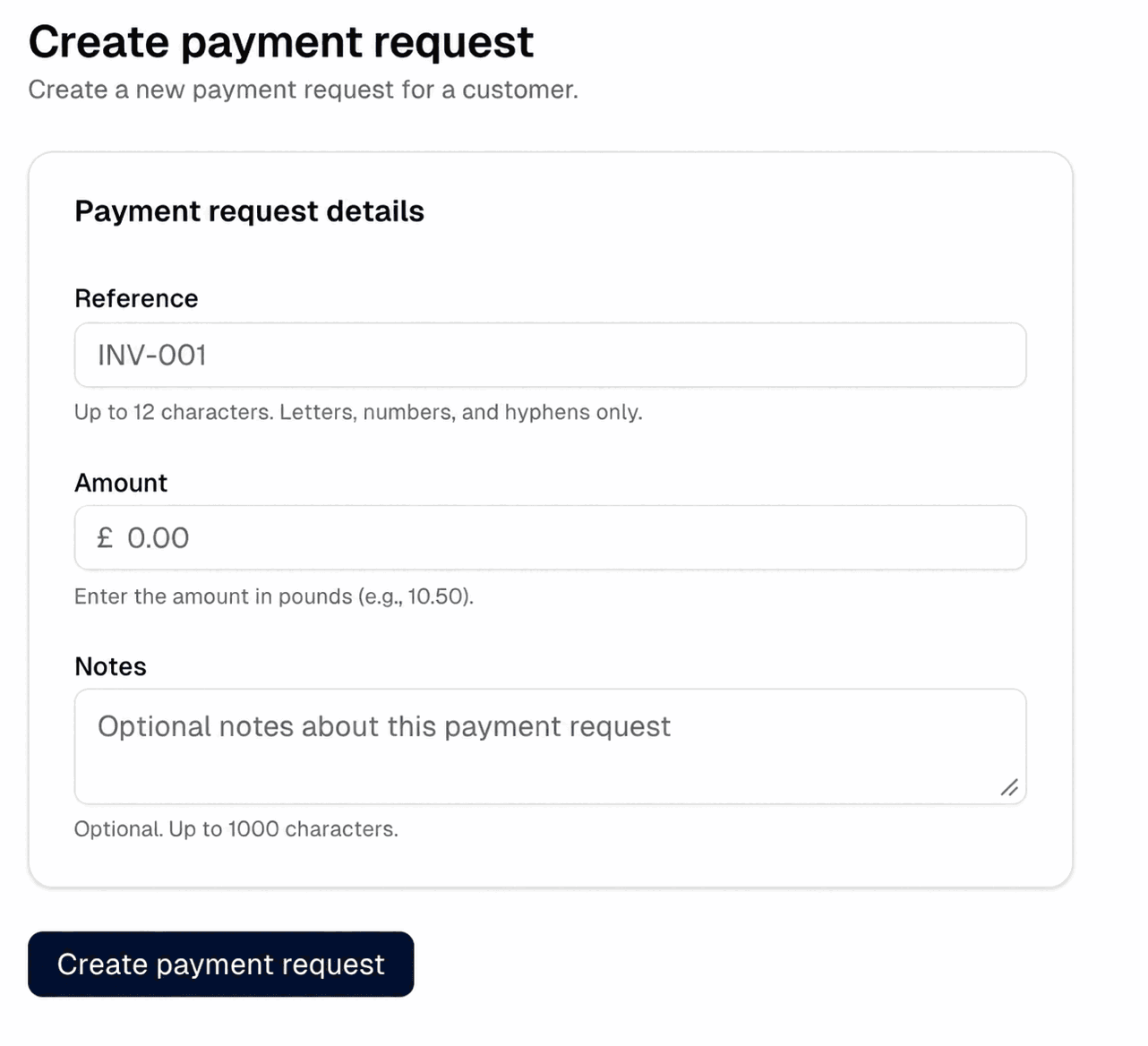
Create a payment request
- Open Payments → Create Payment, or select Create payment request at the top of Payments → Payment History.
- Under Payment request details, enter a Reference. Use up to 12 characters, letters, numbers and hyphens only, such as
INV-001. The customer sees this reference on their bank statement. - Enter the Amount in pounds, such as
10.50. The amount must be greater than zero. - Add optional Notes to help your team identify the request later, up to 1000 characters.
- Select Create payment request. The request opens on its own page.
- Use Copy link to send the link to the customer, Open link to check the payment page yourself, or Download QR code for an in-person payment.
Create a reusable payment link
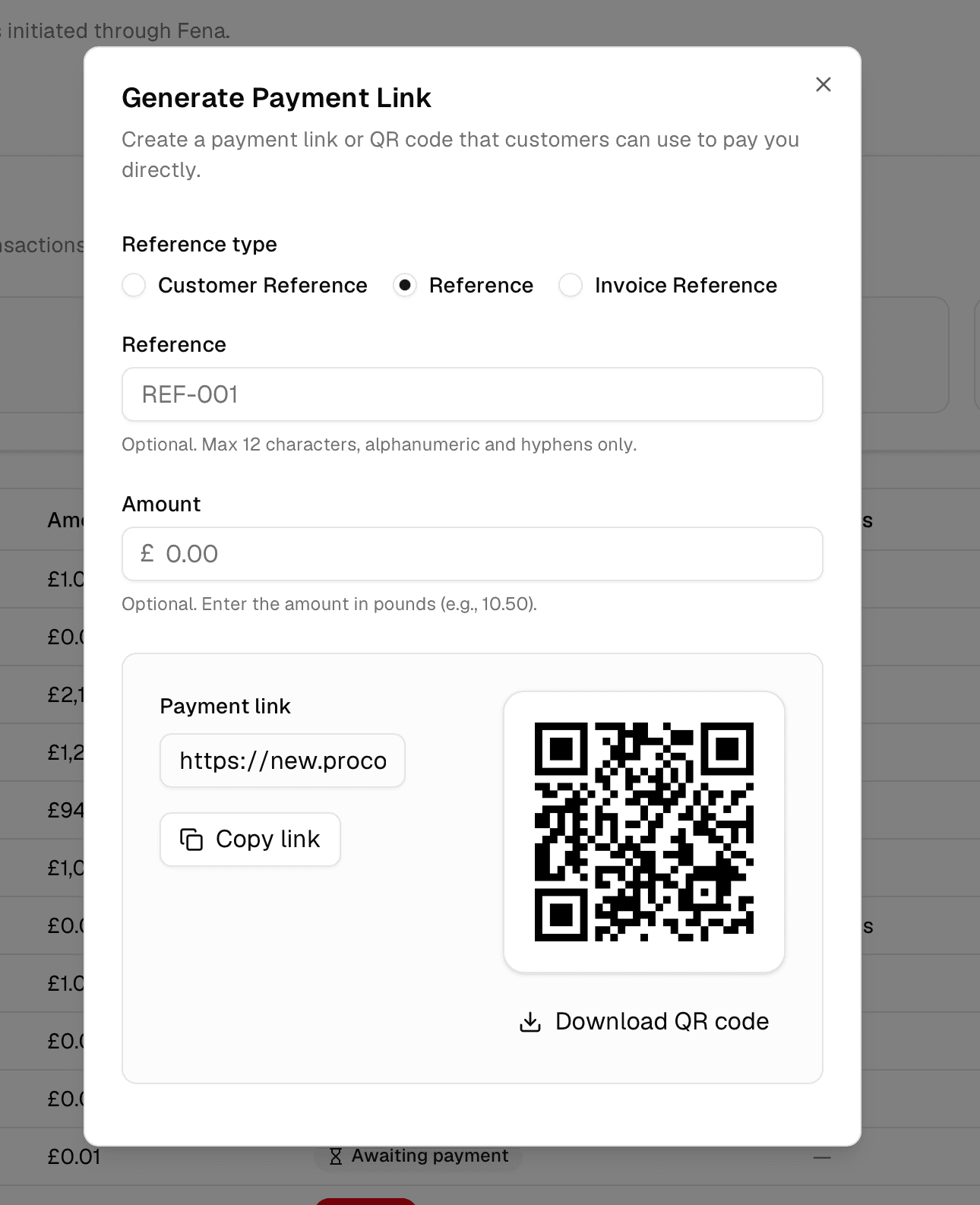
- Open Payments → Payment Link, or select Create pay link at the top of Payments → Payment History.
- Choose a Reference type: Customer Reference, Reference or Invoice Reference. This only changes the wording the customer sees on the payment page.
- Optionally fill in the reference (up to 12 characters, letters, numbers and hyphens) and the Amount in pounds. Leave either one empty and the customer fills it in.
- The link updates as you type - read it in the Payment link field, then select Copy link or Download QR code. Each button briefly shows Copied or Downloaded.
- Use the link in customer communications or print the QR code. Copy the link or download the QR code again after changing the reference type, reference or amount.
Reusable links are not listed in Payments → Payment History until a customer uses one. A request appears in Payment History as soon as a customer submits the payment form, before their bank has completed it. Check the Status column to see whether it was paid.
References customers pay against
References used for payment are limited to 12 characters, letters, numbers and hyphens. Anything else is removed and longer references are shortened, so a payment can appear under a shortened reference. Keep account references and invoice numbers within that format so payments match your records. If an invoice number contains no letters, numbers or hyphens at all, the customer's account reference is used instead.
Customer account payments
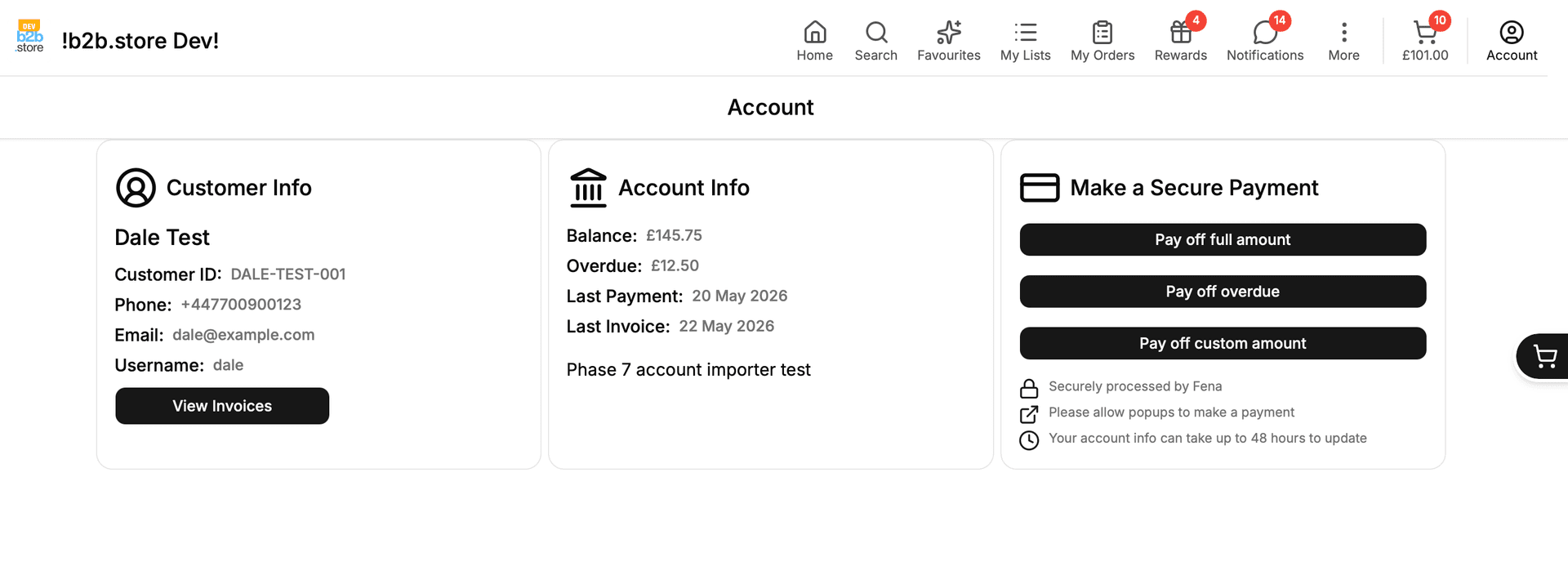
When Payments is enabled for your B2B Store, customers see their balance on their account page and can select Pay off full amount, Pay off overdue or Pay another amount. Pay off full amount and Pay off overdue only appear when there is an amount to pay, and all three need a payment reference on the customer's record. Keep balances current with the account import, and make sure the customer import includes their payment reference.
Invoice payments
Customers select View invoices on their B2B Store account page, then Pay Now on an outstanding invoice. Keep invoices available using the invoice upload guide.
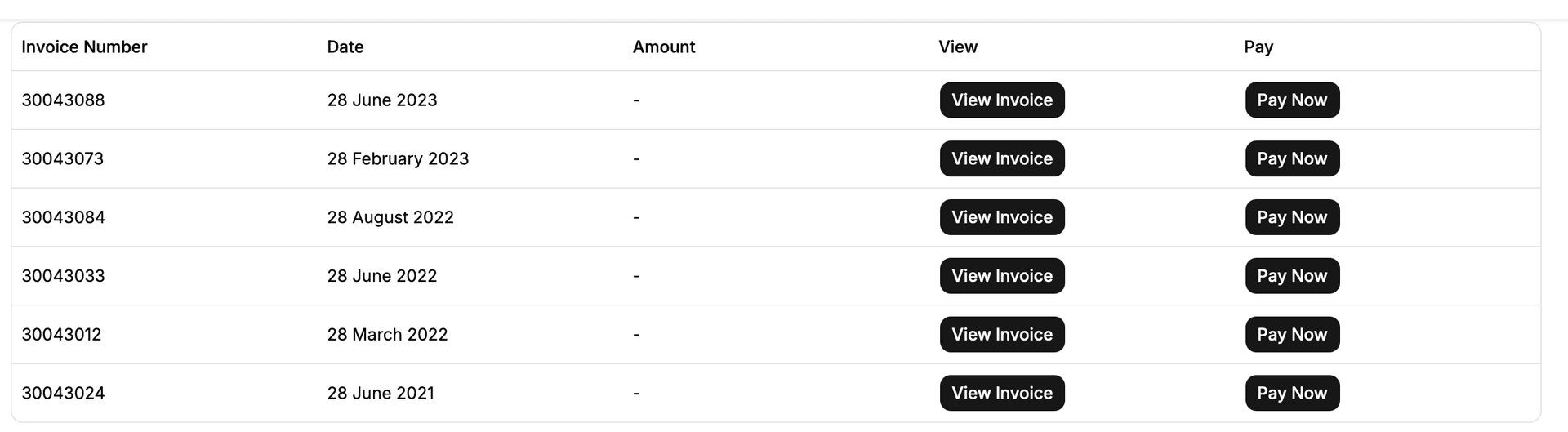
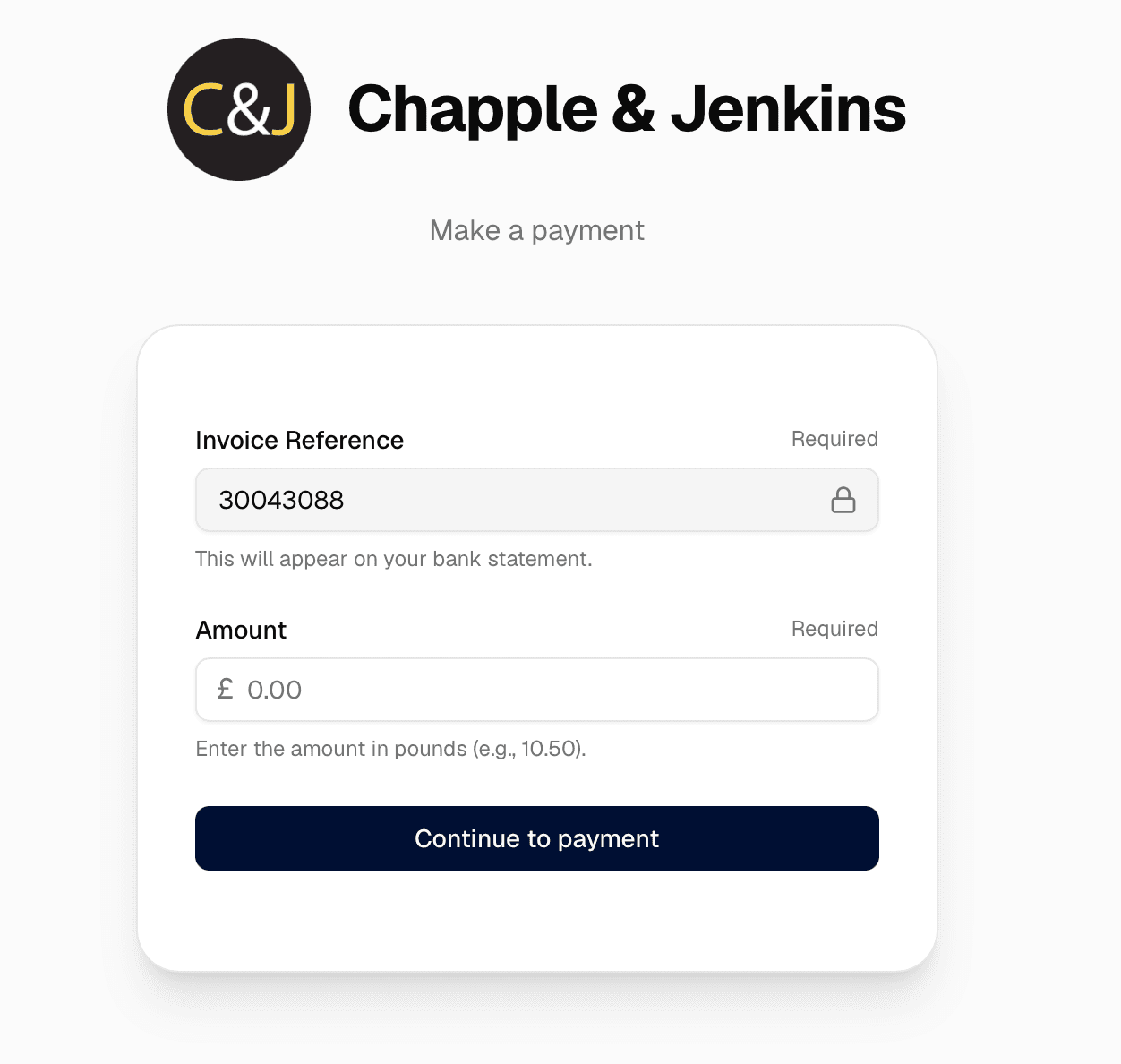
The payment page opens with the invoice reference already filled in and, when supplied with the invoice, its amount.
Checkout payments
Use checkout payments when customers normally receive exactly what they ordered. If substitutions, unavailable products, catch weights or manual adjustments often change the total, agree a refund or adjustment process before enabling payments at checkout.
What you'll see
Payments → Payment History opens with a Payments summary of completed transactions over the last 12 months:
- Settled amount - the total value you have been paid.
- Completed transactions - how many payments completed.
- Average transaction value - the settled amount divided by the number of completed transactions.
Below it, the 20 most recent payment requests are listed newest first, with their Reference, Amount, Status, Notes and Created date and time in your company's time zone. Older requests are not shown here - if you need one, contact your onboarding manager. Long notes are shortened; hover over them to read the full text. Select a reference to open the request. If you have not taken any payments, the table shows No payments yet.
A payment request page shows the amount, when it was created, its Status, when it was Completed and any Notes. The Payment link section appears while the status is Draft, Awaiting payment, Processing, Overdue or Failed, so you can resend the link if a payment failed. It gives you Copy link, Open link and Download QR code again. It is hidden once the request is Paid, Cancelled or in any refund status.
Customers follow the link, enter or confirm the reference and amount, choose their bank and authorise the payment. Payments currently support UK banks; the available banks are listed below.
Payment statuses
| Status | What it means |
|---|---|
| Draft | The request has been created but not sent to the customer yet. |
| Awaiting payment | The request is with the customer and nobody has paid it yet. |
| Processing | The customer has started the payment and their bank is completing it. |
| Paid | The money has been collected. |
| Overdue | The request passed its due date without being paid. |
| Failed | The payment was declined or not authorised. |
| Cancelled | The request was cancelled and can no longer be paid. |
| Refunding | A refund has been started and is not complete yet. |
| Refunded | The full amount has been returned to the customer. |
| Partially refunded | Part of the amount has been returned to the customer. |
| Refund failed | A refund was attempted and did not complete. |
| Unknown | The status could not be recognised. Check again shortly. |
If something goes wrong
- The form will not accept a reference: use no more than 12 characters, and only letters, numbers and hyphens. Remove spaces and other punctuation.
- The form will not accept an amount: enter pounds and pence as digits with at most two decimal places, such as
10.50. Leave out the £ sign and any thousands separators. - Creating the request fails with an unexpected error: check the amount is greater than 0.00, then try again.
- Missing Fena configuration: your company is not set up to take payments yet. Contact your onboarding manager.
- Create Payment or Payment Link shows a page not found: your company is not set up to take payments yet. Contact your onboarding manager.
- Unable to load payments: reload the page. If the message stays, contact your onboarding manager.
- Unable to load payment: reload the page. If the message stays, contact your onboarding manager.
- Unable to load supported banks: refresh the page or try again later.
- Payment link unavailable: reload Payments → Payment Link. If the message stays, contact your onboarding manager.
- A link or QR code has the wrong amount: correct the fields, then copy the link or download the QR code again. Copies you already shared do not change.
- A payment you created earlier is not in the list: only the 20 most recent requests are shown. If you need an older one, contact your onboarding manager.
- The customer says they paid but the request is not Paid: open the request from Payments → Payment History and check the reference, amount and status before asking them to pay again. A payment showing as Processing is still with the customer's bank.
- Account payments show no balance or reference: check the account and customer imports. Account details can take up to 48 hours to update for the customer.
- The customer sees a message asking you to update their account reference: their payment reference is missing. Check the customer import.
- The customer says the pay buttons do nothing: the payment page opens in a new window, so ask them to allow pop-ups for your store.
For your ERP/IT team
If you want payment requests raised automatically from your ERP, finance tool or credit-control workflow, discuss it with your onboarding manager first - Admin → API Docs opens the integration reference. For manual collection, use the payment links and requests described above.