Order substitutions
Tell customers about product substitutions before the delivery arrives, so there are no surprises at the door.
What it does
Tell customers which product has been replaced before their delivery arrives.
When to use it
Use it when an unavailable product has been replaced and the customer needs a chance to query the change.
What the customer receives
When your system reports a substitution on an order, the customer's opted-in contacts receive a WhatsApp message like this:
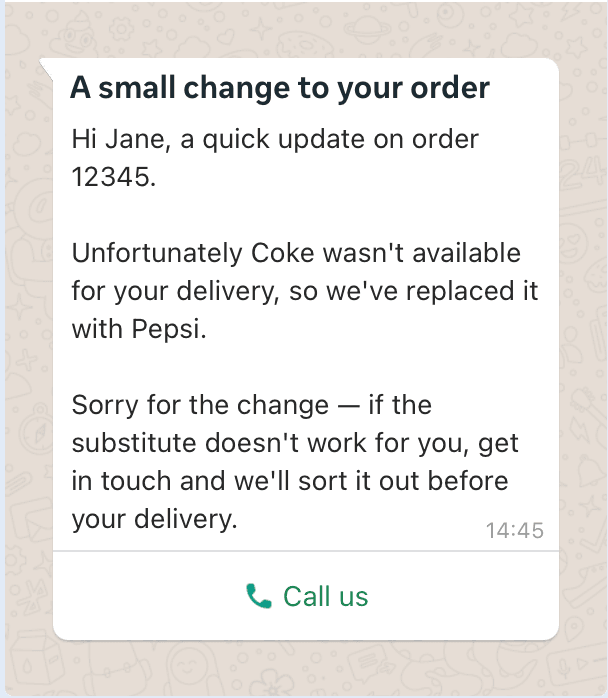
The message includes:
- The order number, so the customer knows exactly which order is affected
- The product that was unavailable and the product it has been replaced with
- A clear apology for the change
- A Call us button so the customer can ask questions or object to the substitution before the delivery
What you need to do
There is no event to configure in the ProConnect admin panel. Your onboarding manager enables this early-access service and agrees the message wording and buttons with you. Your ERP triggers the message.
- Ask your onboarding manager to enable this use case.
- Check that your customers and contacts are ready using the WhatsApp onboarding guide. Messages go only to opted-in contacts.
- Agree with your ERP/IT team when the message should be triggered.
What you'll see
The customer's opted-in contacts receive the message shown above, with the relevant order or invoice details and a route to your team.
For your ERP/IT team
- Your ERP or back-office system triggers the order substitution event through the ProConnect API, passing the order reference, the customer reference, and the products affected — the original and the substitute.
- ProConnect matches the customer reference to the customer and sends the pre-approved template to their opted-in contacts.
- If the substitute does not work for the customer, they tap Call us and your team can put it right before the delivery goes out.
If something goes wrong
- A customer receives no message: open CRM → Contacts and check the contact is linked to the correct customer and has opted in. Follow the onboarding guide if their details need correcting.
- The reference or products are wrong: check the order and replacement products in your ERP and ask your ERP/IT team to correct the event details before another message is sent.
- Details and consent are correct but delivery fails: ask your ERP/IT team to check the event response. Give them the affected order or invoice reference and the time it was triggered; do not repeatedly resend it.